Rule-based quoting · human Approve

Start setup

Every quote. Pick your field, set your prices (and any optional rules that fit your trade), then share your web form link. Every quote waits for your Approve.

Step 1 of 6 · Trade 17%

Pick your field

We generate a quote workflow template matched to your profession.

Business basics

Used on your customer link and quote templates.

Required
Required
Valid email required
Not needed if customers only use your quote form.
Please check the phone number, for example 720-555-0145.
Required
Picked from your device. Customer times and quotes are shown in this zone.

Price rules

Seed a template for your field, then tune the knobs you actually use.

Leave empty for no minimum. Only your own number is ever used.

Asked in the customer's own language. Edit, delete or add your own.

Messages to your customers

Get paid

After you approve a quote, one tap builds a payment message with these details. You send it, and clients pay you directly.

Money goes to you. We only build the message; you send it. We never process, hold or track the money. No cards / no Stripe.
We build https://www.paypal.me/yourname/amount - create one at paypal.me if needed.
PayPal.me username required when PayPal is on

Saved to your account. Optional - you can skip and add payment details later.

Add to Google Calendar

When you accept a job, Enqovo can put it on your Google Calendar so the crew sees the time and address.
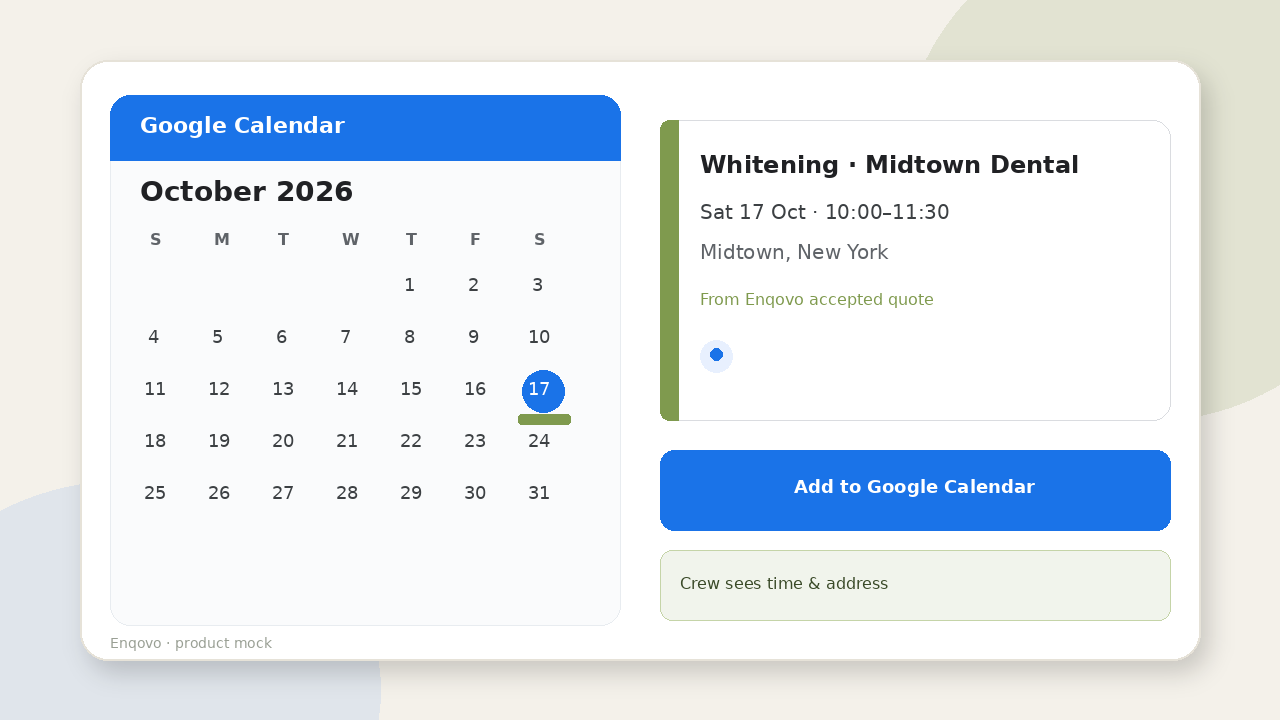
Jobs you accept can be added to your Google Calendar. Enqovo saves your calendar settings now; full auto-sync connects when Google access is enabled.
Add to Google Calendar
The Google account that owns the calendar your crew uses.
Valid email required when calendar is on
Leave blank for primary. Automatic calendar sync is Coming; Add-to-Calendar links work now.

Saved to your account. Optional - skip and add later. Connecting Google Calendar is Coming.

WhatsApp (optional)

Most customers reach you through your web form or email. If you also take requests on WhatsApp, add the number here. You can skip this.

Use the same number customers already message on WhatsApp. WhatsApp connection is coming.
Check the number format

Connect checklist

  • 1Confirm WhatsApp Business is active on this number
  • 2We connect your number through our WhatsApp partner (YCloud) — no Meta setup for you
  • 3Until it's connected, collect inquiries with your form link
  • 4Share your customer link or QR with leads
Your customer form link is ready below. WhatsApp connection is coming; until then you can still set rules and use the form link; inquiries are captured and saved, and quote drafts wait in your dashboard for your Approve.

You are set

Form link, price rules, and pay rails saved. WhatsApp connection is coming — we'll walk you through it when it's ready. No price reaches a customer until you approve it.

    Your setup is saved. Next step: share your form

    Customers can send you inquiries now. Every inquiry is captured and saved to your account.


    Manage your quotes at your dashboard: sign in with a one-time link we email you at . No password needed. Approve, change or skip each quote there; nothing reaches a customer until you approve.

    Account saved. Pricing, payment, and calendar prefs stored in this browser. WhatsApp connection is coming; until then use your form link. Inquiries are captured and saved; quote drafts wait in your dashboard for your Approve. Setup token kept in this browser.